Aniimo Black Screen After an Update: The Official Launcher Check
If Aniimo shows a black screen when you click Start Game after updating from an old version, the official FAQ says to open the launcher's Settings, choose Quick Repair, then restart the launcher. This recommendation is tied to that specific update-and-startup sequence. It is not evidence that every black screen has the same cause.
In this guide
Source checked October 10, 2026: Aniimo's official FAQ, PC launch Question 9. We verified the published instructions, not a running game: no launcher repair, installation change or successful before-and-after test was performed here.
Match the trigger before choosing a route
| What happened | Relevant documented route | What we can establish |
|---|---|---|
| Updated from an old version, then Start Game produced a black screen | PC launch Question 9: launcher Settings, Quick Repair, restart launcher | This is the exact sequence covered by this guide. |
| A login error involving installation-path characters | PC launch Questions 8 and 10 | A separate directory check; see the installation-path guide. |
| The launcher itself extends beyond the screen | PC launch Question 7 | A display-scaling recommendation, not the startup-black-screen answer. |
| The symptom occurs later during play or follows a different sequence | The cited Question 9 does not establish that situation | Record the actual trigger rather than presenting this route as a diagnosis. |
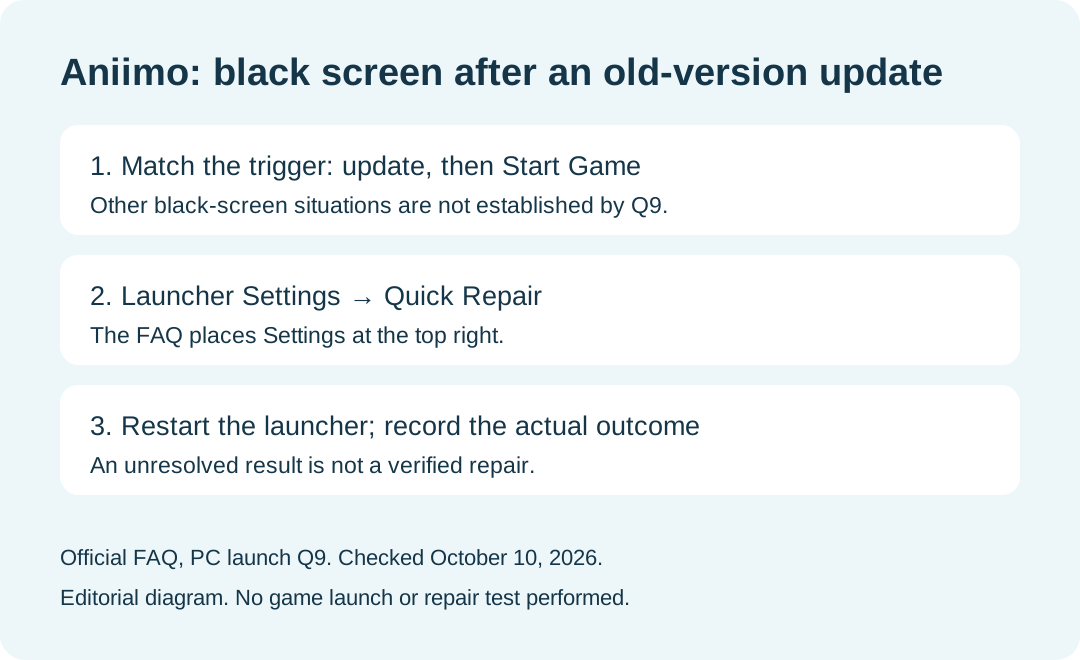
Where does the FAQ say to find Quick Repair?
Question 9 places the Settings button at the top right of the launcher. Its sequence opens the settings panel, selects Quick Repair, and then restarts the launcher. The cited instruction says to restart the launcher; it does not say that a Windows restart or a complete reinstall is required for this step.
This is a description of the published route. The diagram is our editorial summary, not a screenshot proving that we opened the repair panel on this computer.
What should I compare after the restart?
Our suggested comparison is to repeat the same Start Game action and record whether the same black screen appears. Write down the date, the update context, and which documented steps were actually completed. If you know the old and new versions, include them; if you do not, mark them unknown.
That comparison record is editorial advice. The FAQ does not publish a repair success rate, a promised completion time or a universal explanation of the failure. We do not supply one.
Should I change the install path or display scale too?
Those are separate answers to different symptoms. Our install-path guide covers the directory condition associated with a PC login error. Our launcher scaling guide covers a window larger than the screen. The existence of those recommendations does not mean you should combine them with Question 9 and claim to know which change helped.
What if the screen remains black?
Record the outcome as unresolved. The official FAQ lists [email protected] for support. Our suggested report includes the platform, exact trigger, update context, a screenshot of the result and the steps completed. Describe a failed comparison plainly rather than saying that Quick Repair solved it.
For official platform download routes and installation requirements, use the Aniimo download guide. For maintenance and other connection symptoms, use the separate server-status guide.