Aniimo Download: Where to Get It, PC Requirements, and Device Support
For Windows PC, start with the download link in Aniimo's official notice. That notice also links the PS5 and Xbox stores. Use the platform and requirements sections below, then choose a troubleshooting guide for a specific error.
In this guide
- Where can you download Aniimo?
- What PC specs does Aniimo require?
- How do you install the official PC client?
- What should Android and iPhone users check?
- Does cross-platform play mean shared progress?
- Can you play Aniimo on Steam Deck?
- Is Aniimo available on Nintendo Switch?
- What should PS5 players check before linking an existing character?
- Can I link an existing Aniimo Pass after skipping the console's first-login prompt?
- Cloud launch checkpoints
- Launcher window size
- Installation-directory login errors
- Black screen after an old-version update
- White screen before the logo
- Windows file-version compatibility errors
- More troubleshooting checks and diagrams
- Console achievements and trophy records
- Download progress stays at zero
- Mobile graphics and heat after launch
- Android incompatibility before game entry
Where can you download Aniimo?
On Windows PC, Aniimo is listed through the official website, Steam, and Epic Games Store. The official client has its own launcher: download the client, install the launcher, then start the game from it. Steam and Epic are separate storefront options. Pick one and use that client to install and launch your copy.
On mobile, use the App Store or Google Play. Aniimo’s official mobile instructions link to both. The official Android listing identifies Pawprint Studio as the developer. If you land on a different listing, check its developer name before downloading.
The site’s PC pre-download window opened on September 14, 2026, at 10:00 UTC+8, ahead of the PC and console launch on September 16. That pre-download date has passed. It still helps explain why older setup instructions refer to installing ahead of launch; for a new install, use the current launcher or store listing.
What PC specs does Aniimo require?
Steam and Epic list the following minimum Windows requirements:
Swipe or scroll sideways to compare all columns.
| Component | Minimum |
|---|---|
| Operating system | 64-bit Windows 10 |
| Processor | Intel Core i7-4770 or AMD Ryzen 7 2700 |
| Memory | 8 GB RAM |
| Graphics | NVIDIA GeForce GTX 970 or AMD Radeon RX 5600 |
| DirectX | Version 11 |
| Storage | 40 GB |
The listed recommended configuration is 64-bit Windows 10 or later, an Intel Core i7-10700 or AMD Ryzen 5 5600 or better, 16 GB RAM, and an NVIDIA GeForce RTX 3060 or AMD Radeon RX 6700 or better. Both stores list 40 GB of storage. Steam lists DirectX 11 in its recommended requirements; Epic lists DirectX 12. Those store entries disagree on that field, so check the current official requirements before treating either recommended DirectX value as definitive.
Aniimo’s official PC instructions specify 64-bit Windows 10 as the minimum operating system and say Windows 7, Windows 8, and 32-bit systems cannot run the game. The same page recommends an SSD and says to reserve 40 GB for the fully extracted game. The official page’s recommended-spec image is dated September 14, 2026, and says the specifications may change as device compatibility improves.
How do you install the official PC client?
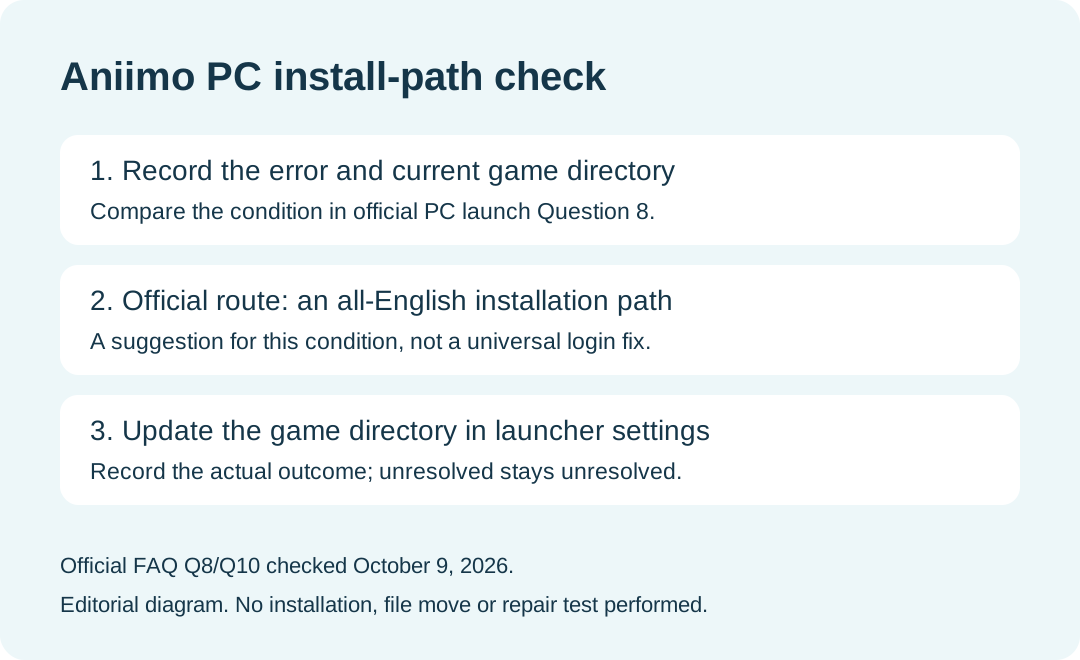
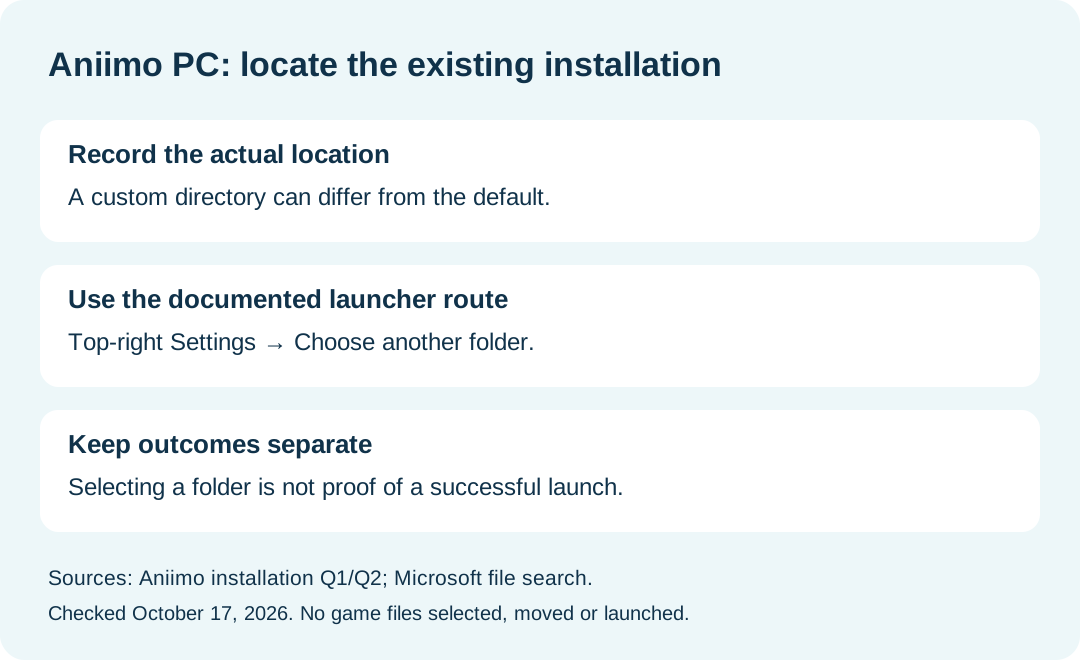
Download the PC client from Aniimo’s official page. After the download finishes, select Install Now to install the launcher; subsequent launches use that launcher. The default install location is the launcher’s directory. If you choose a custom or external drive, the official instructions say to use the launcher’s top-right Settings menu and select Choose another folder to locate the game.
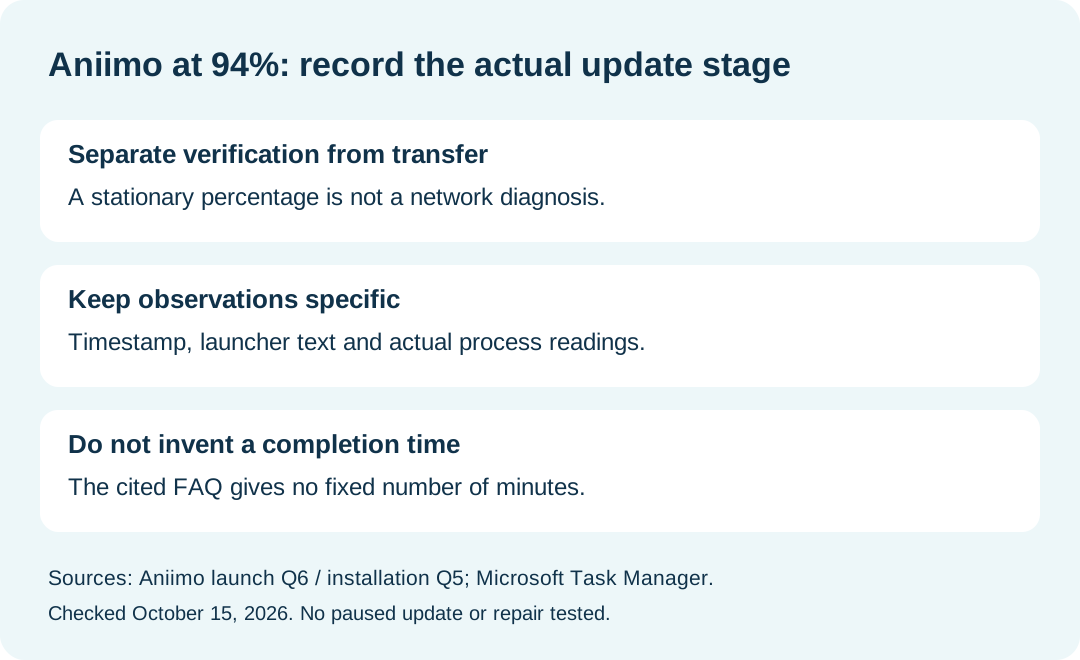
Keep at least 40 GB free on the installation drive. The installer may need that space for the fully extracted game, and the official instructions recommend an SSD. If a file verification error or loading freeze remains after retrying, the page’s next step is Settings → Quick Repair in the launcher. If the launcher update appears frozen at 94%, the official explanation is that it may be verifying local resources; wait for that process to finish before closing it.
A client left over from an earlier test cannot be reused; the official FAQ says to uninstall it and install the latest launcher and game client. If you are moving an existing install to a different drive, use Choose another folder rather than starting a second installation in a new location.
What should Android and iPhone users check?
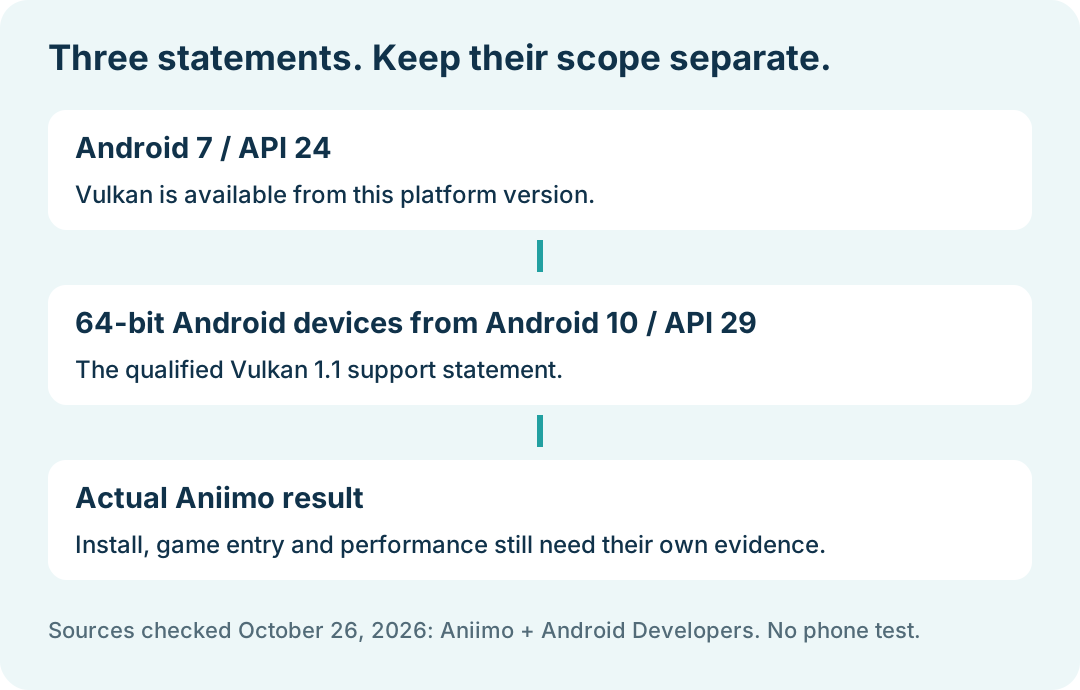
The official mobile page lists Google Play and the App Store, and recommends 18 GB of free space plus a stable Wi-Fi connection before downloading. For Android compatibility problems, it specifically recommends checking whether the device supports Vulkan 1.1. Some older GPUs do not, which can prevent installation or stop the game from launching.
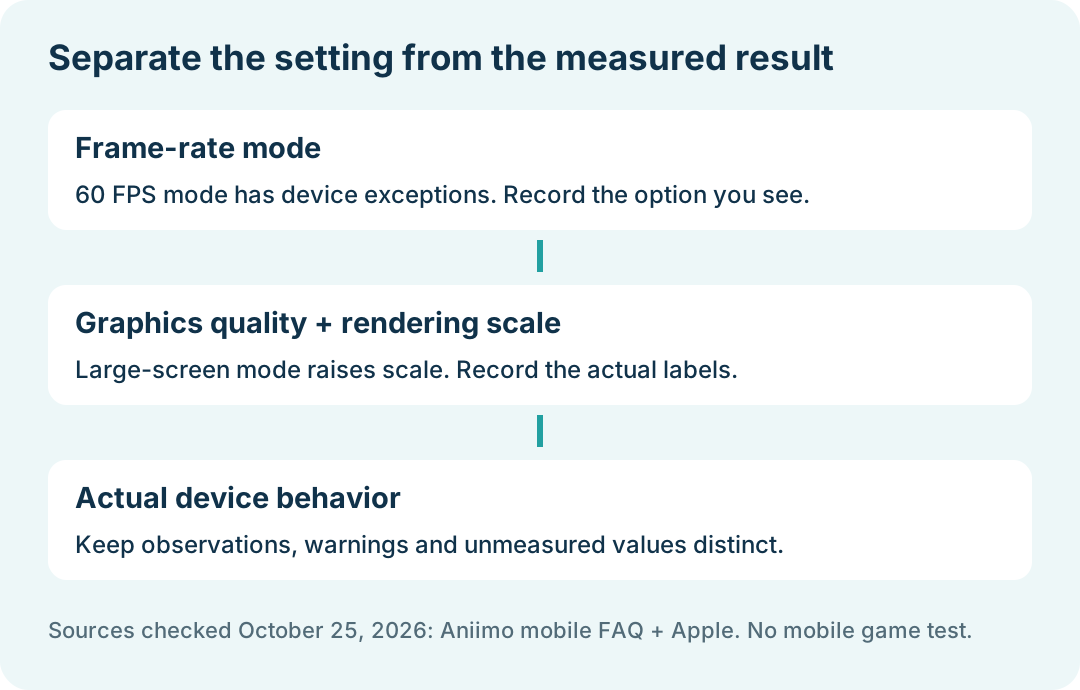
The game has a 60 FPS mobile mode, with exceptions for a small number of lower-end devices. The official guidance also warns that 60 FPS may heat the device. Large-screen mode turns on automatically for tablets and similar devices, along with a higher rendering scale; lowering graphics quality or rendering scale can reduce the load.
Uptodown lists an Android version, but it is a separate APK download page. The official mobile instructions recommend official channels. If Google Play says your phone is incompatible, check Vulkan 1.1 and the official device guidance before trying another installer.
Does cross-platform play mean shared progress?
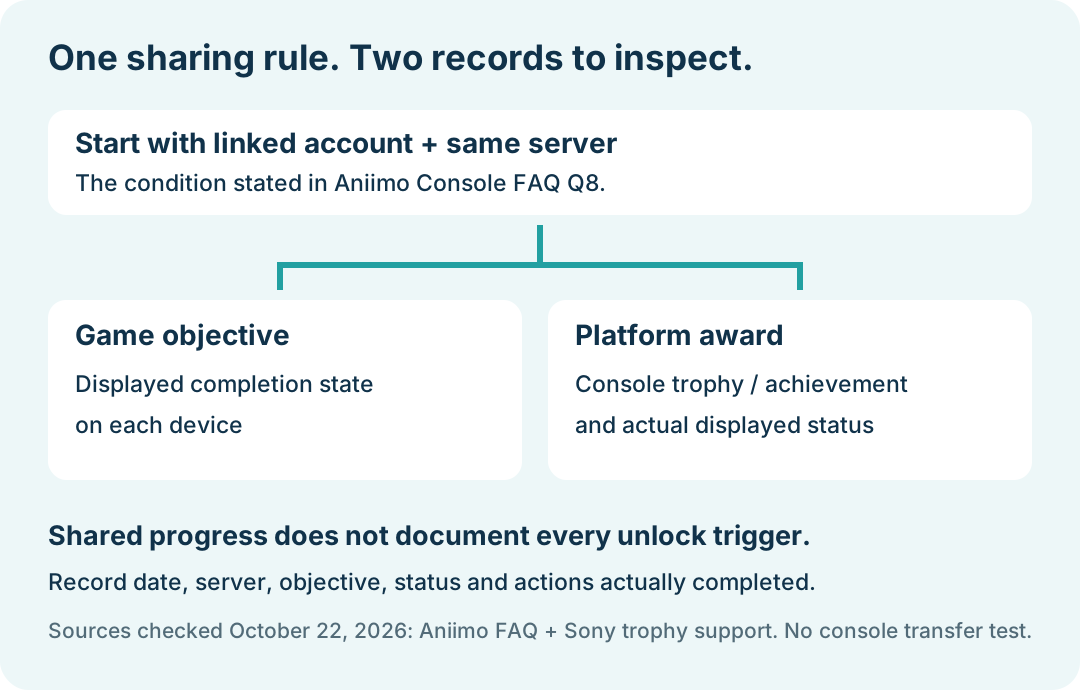
The official FAQ says game progress is shared across PC, console, and mobile when the platforms use the same server. Data on different servers is independent. It also recommends linking an email address if you want to move between platforms or transfer progress from another platform.
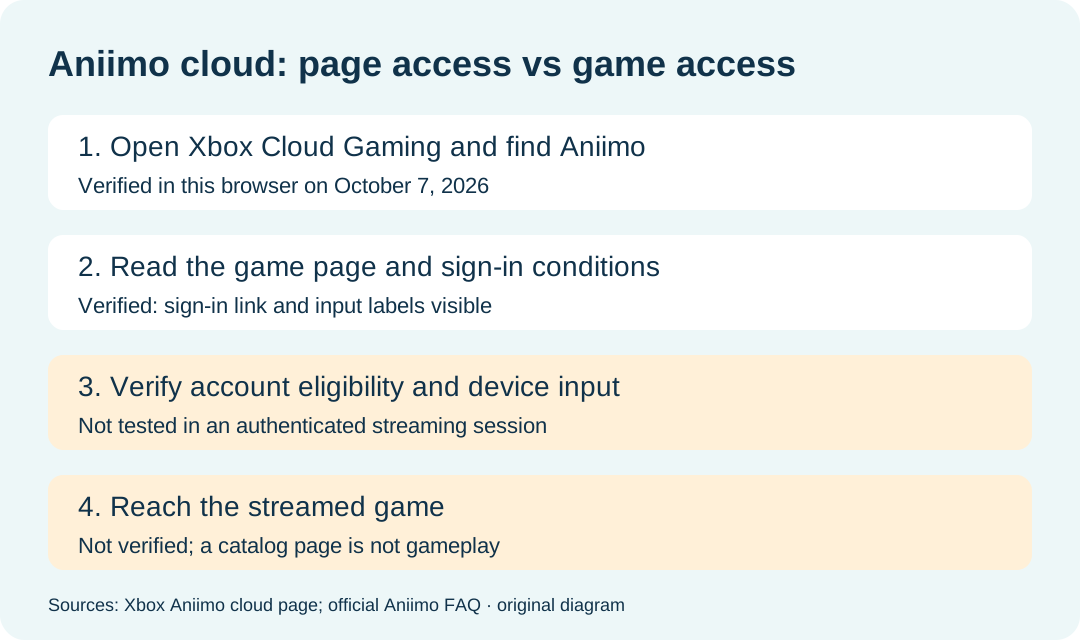
Xbox Cloud Gaming is another way to stream Aniimo on supported devices, including mobile, tablets, PCs, and Xbox consoles. It requires a Microsoft account, and the official instructions say a fast, stable internet connection is needed. Streaming access also depends on the Microsoft account’s status.
Can you play Aniimo on Steam Deck?
Aniimo’s regular store requirements describe Windows PC; the Steam Deck setup described here is a compatibility workaround, not an official support guarantee. One setup guide uses Library → Aniimo → Properties → Compatibility, enables the option to force a Steam Play compatibility tool, and selects Proton 10.0-4. It then changes the controller layout in Steam settings to Gamepad. Another setup account describes using Proton and switching the Deck’s controls from keyboard-and-mouse to controller mode.
There isn’t one result that applies to every handheld. One setup described unstable 20–25 FPS on low settings; the same page reported different performance on an MSI Claw and a Legion Go. A separate Steam hardware setup said the game ran with a few tweaks, but noted that some menus were awkward to use with a controller. Treat those as device-specific experiences, not as a performance promise for your device.
Is Aniimo available on Nintendo Switch?
The official pages reviewed here list Windows PC, PlayStation 5, Xbox, iOS, and Android. They do not confirm a Nintendo Switch client or release date. That leaves Switch availability unconfirmed in these sources; it does not prove that a version will never exist.
Before downloading, check that the platform listing is current, the developer or publisher is Pawprint Studio, and your device meets the requirements shown for that platform. For PC, the most useful checks are 64-bit Windows 10 or later, 40 GB free, and the processor and graphics requirements above. For Android, check the official store listing and Vulkan 1.1 support.
What should PS5 players check before linking an existing character?
Check that the existing character's server matches the server assigned to your PSN account. The official console FAQ says the PS5 server is assigned from the PSN account's registered region, and progress does not transfer between servers. Linking an account does not remove that server boundary.
Can I link an existing Aniimo Pass after skipping the console's first-login prompt?
The official console FAQ describes the linking prompt as the one opportunity to connect an existing Aniimo Pass when an eligible PSN or Microsoft account first signs into Aniimo. If you skip it, the console account registers a new Aniimo Pass and cannot then link to an existing one through that flow. Check your intended account and server before continuing. This describes the published flow, not an account operation tested by this guide.
These console-specific answers were checked on October 4, 2026 against the official PC and console FAQ, Console Questions 4 and 5, published September 14, 2026. For beta reward recovery, use the separate beta rewards guide.
Cloud launch checkpoints
For the actual Xbox cloud entry, account prompts and the limits of our browser check, see the Aniimo cloud gaming guide.
Launcher window size
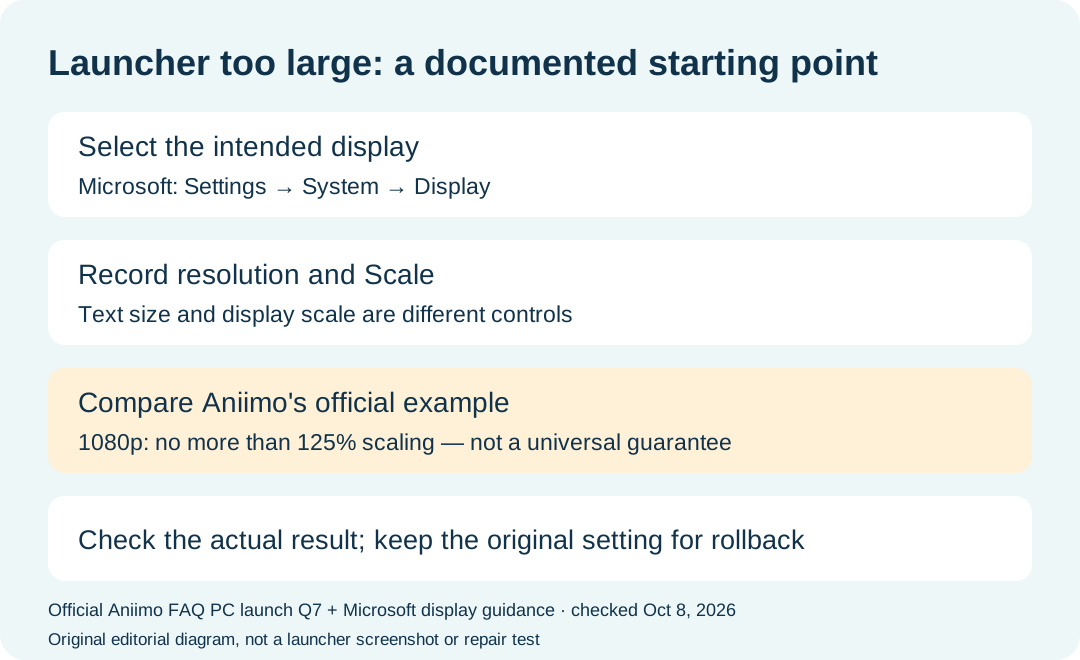
A launcher that extends beyond the screen has a different check from download or file repair. See the launcher display-scaling guide for the official DPI example.
Installation-directory login errors
Read the installation-path guide for the official directory recommendation and its verification limits.
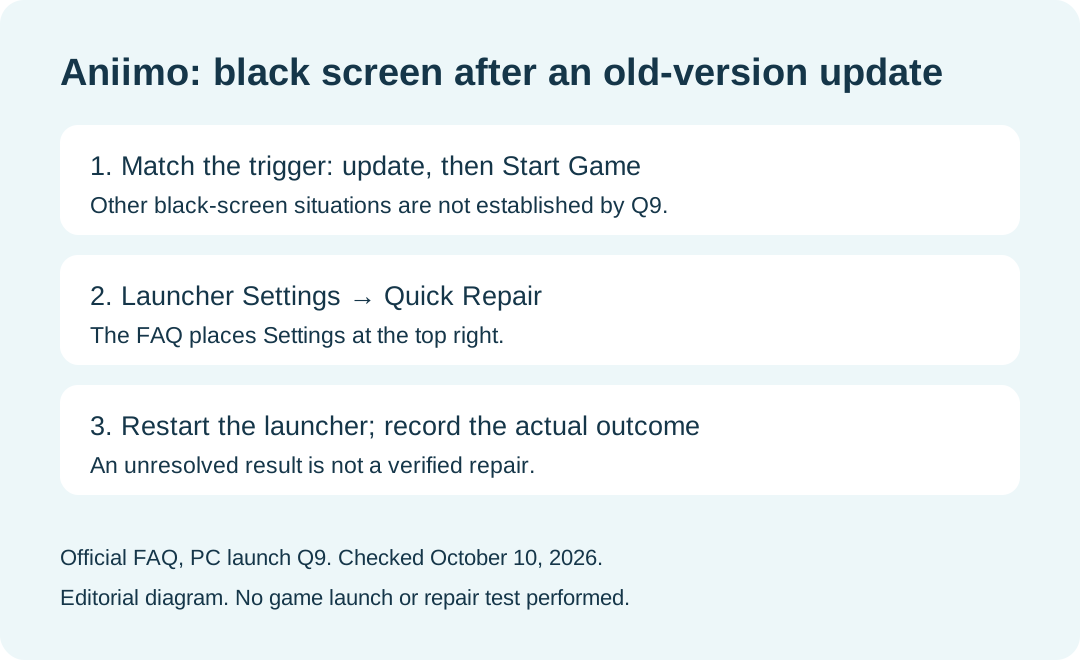
Black screen after an old-version update
For a black screen immediately after Start Game following an old-version update, read the documented launcher repair route.
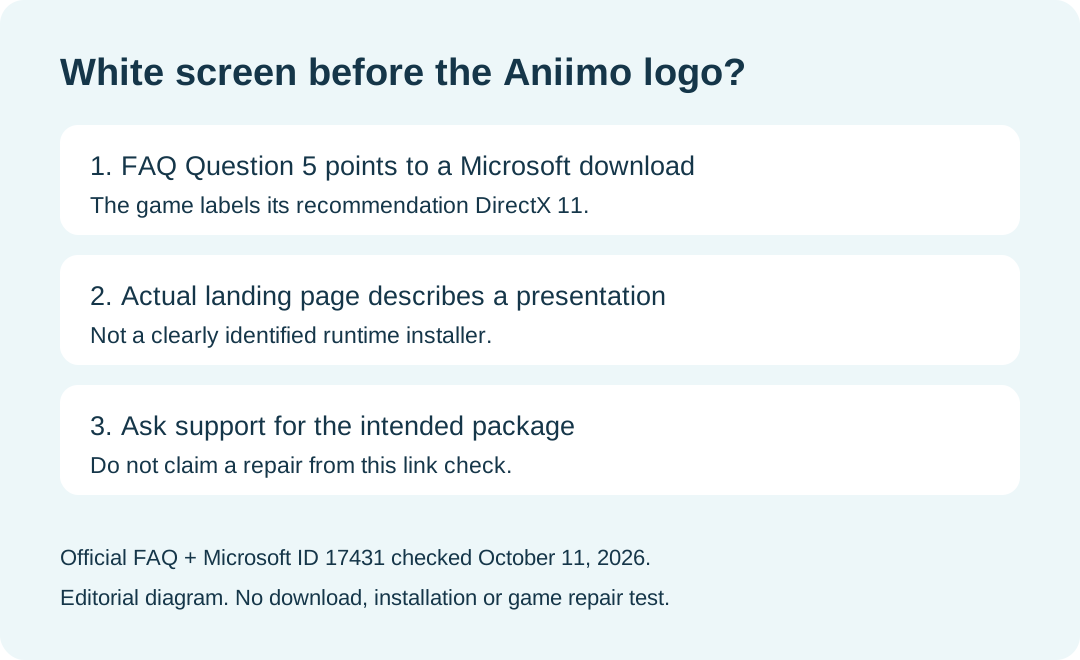
White screen before the logo
Our white-screen link check compares the game's FAQ recommendation with the actual Microsoft destination.
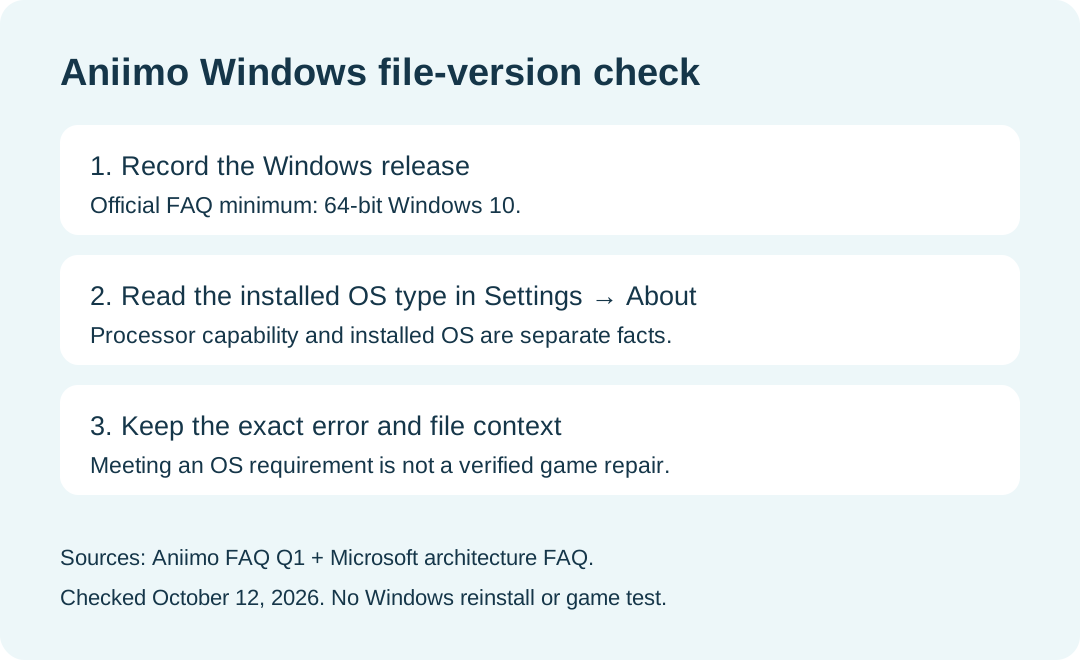
Windows file-version compatibility errors
For the named file-version error, use the Windows compatibility check to separate the installed OS from processor capability.
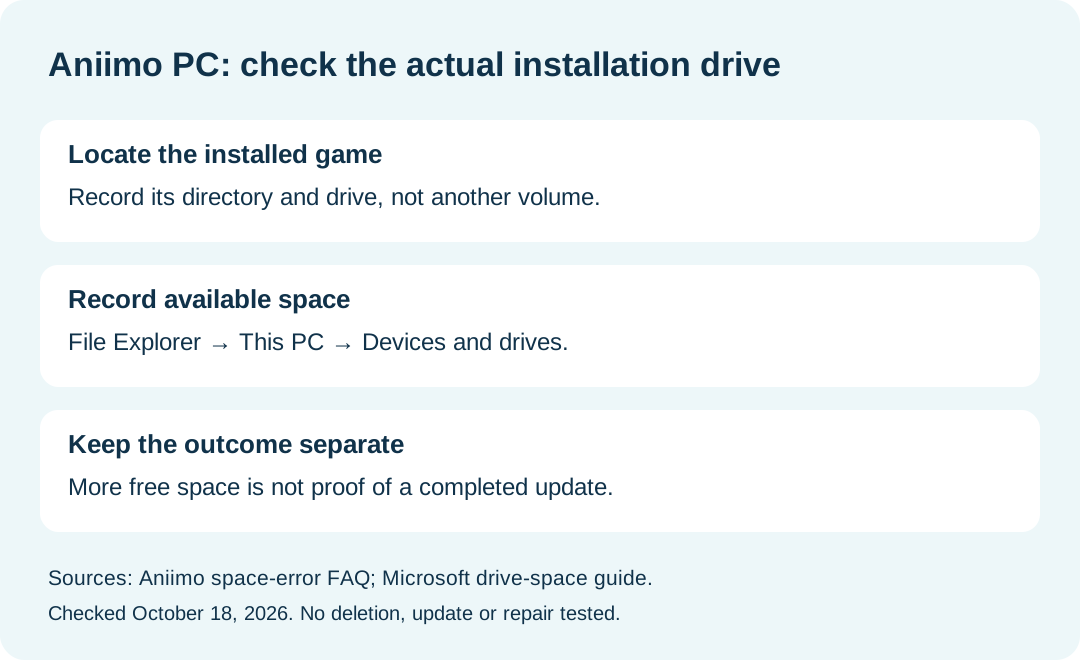
More troubleshooting checks and diagrams
For an explicit update-space error, use the installation-drive space check.
For an existing installation on another drive, read the game-folder location guide.
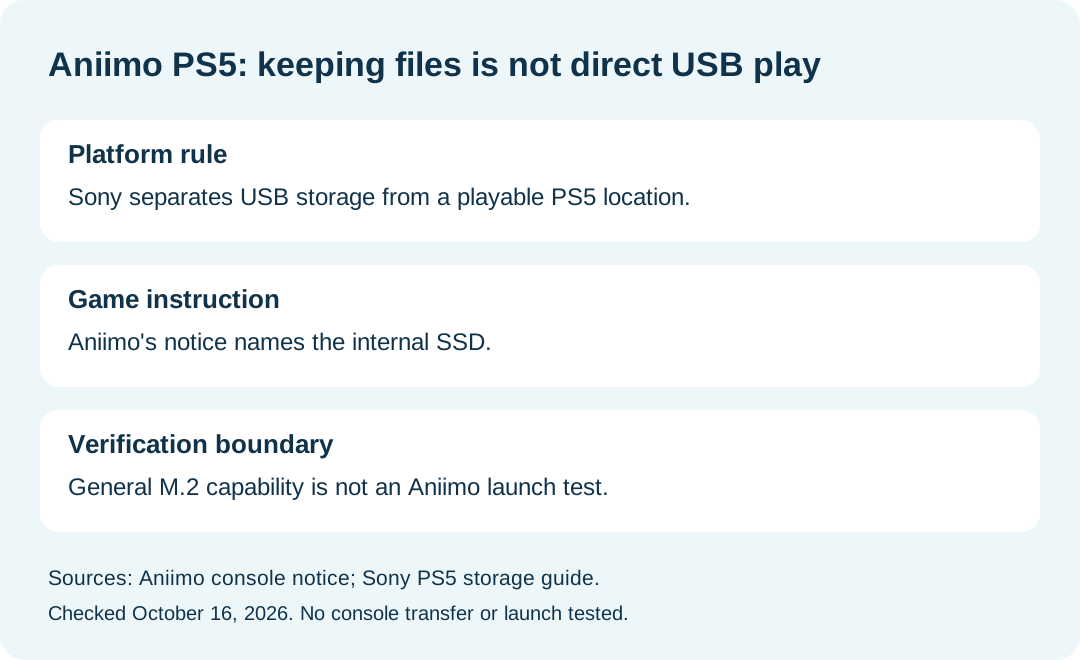
For console installation locations, use the PS5 USB storage comparison to separate keeping files from launching the game.
For a paused update percentage, read the 94% resource-verification guide before assuming a download failure.
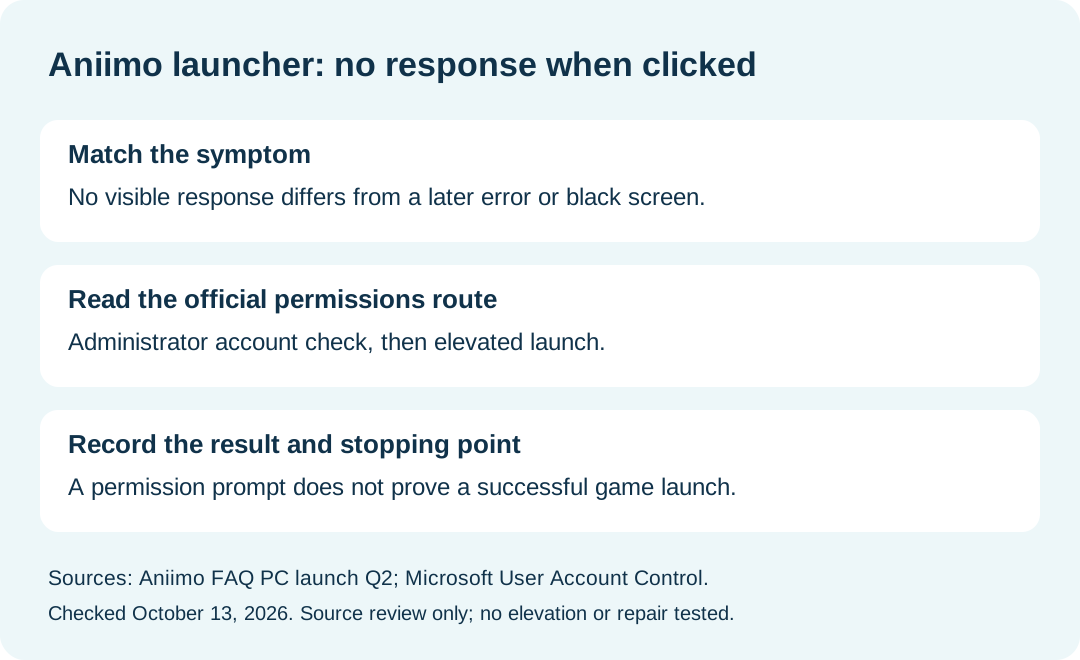
If a Windows launcher click gives no visible response, see the official permissions-check guide.
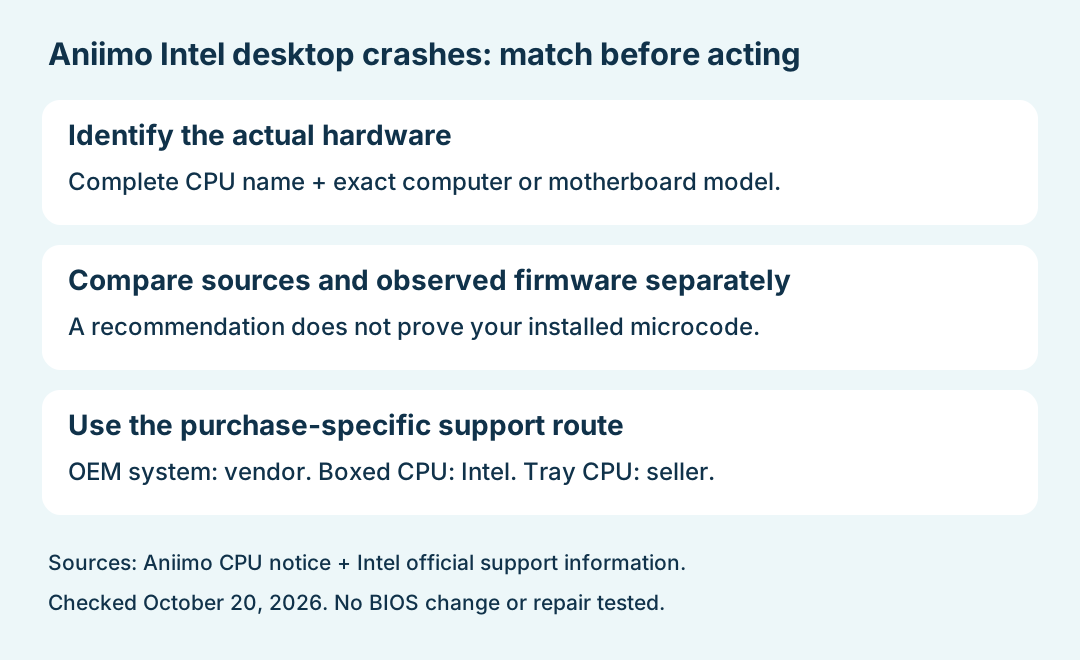
For repeated crashes on a matching Intel desktop system, compare the CPU advisory and support routes before treating the processor as a confirmed cause.
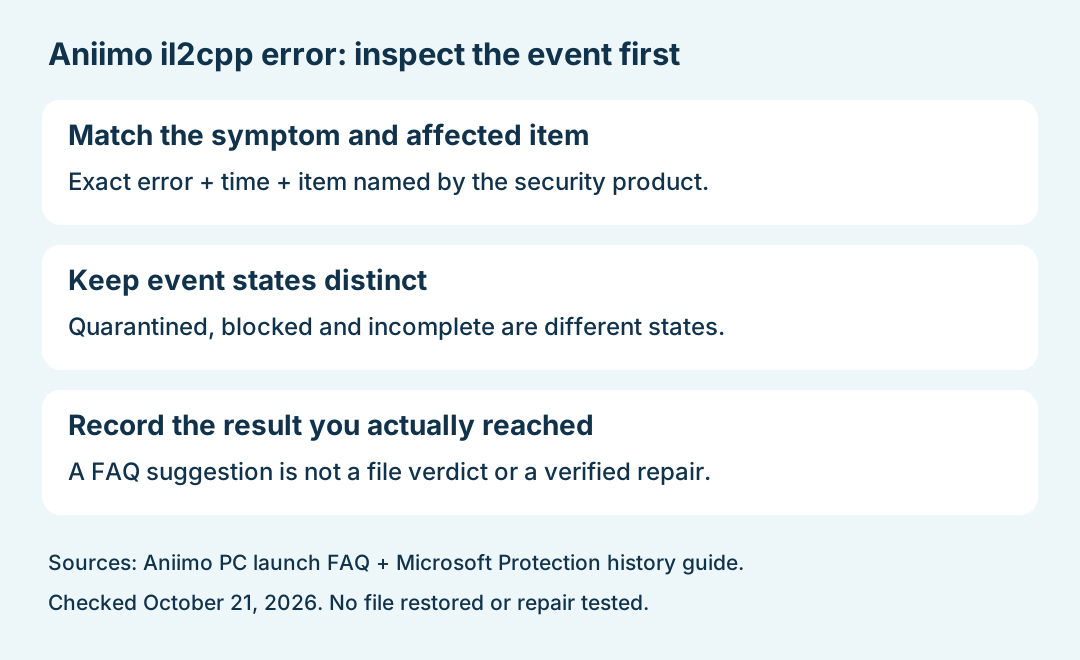
For the specific Failed to load il2cpp message, use the antivirus-event comparison guide to keep quarantine, blocking and a verified launch separate.
Console achievements and trophy records
For what the same-server rule confirms and how to inspect a PS5 trophy entry, read the achievement and trophy guide. Sharing progress and confirming a platform award are separate checks.
Download progress stays at zero
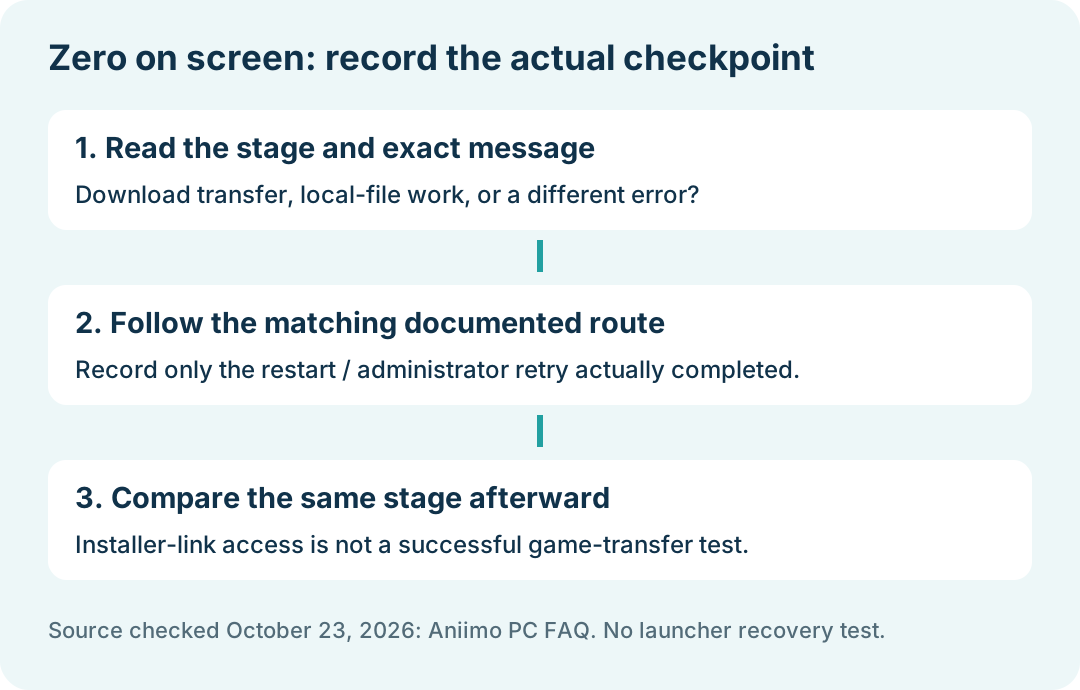
Read the zero-progress download check for the documented retry and a dated installer-link checkpoint. Link access does not prove the game transfer is working.
Mobile graphics and heat after launch
For a device that already runs the game, read the mobile graphics and heat guide to separate the frame-rate option from rendering scale and observed performance.
Android incompatibility before game entry
Read the Android Vulkan compatibility guide to distinguish the official Vulkan 1.1 check from a complete device-compatibility or performance result.