Aniimo Intel CPU Crashes: Official Guidance and Support Routes
For repeated Aniimo crashes on a 13th- or 14th-generation Intel desktop system, match the exact processor and computer model to the official advisory, then use the appropriate manufacturer or Intel support route. A crash message alone does not diagnose a defective CPU. Intel's support page, checked below, recommends Intel Default Settings and a matching vendor BIOS containing microcode 0x12F or later.
In this guide
Sources checked October 20, 2026: Aniimo's September 14 CPU notice, Intel's instability information, and Intel's support-routing statement. This is a comparison of published guidance, not a hardware diagnosis or a tested repair.
Which crashes does the Aniimo notice discuss?
The game notice discusses some systems using Intel Core desktop processors from those two generations. Its examples include repeated exits, freezes and out-of-VRAM errors. Those symptoms do not establish the cause of an individual crash, and the notice is not a finding that every Intel processor is affected.
Keep the complete processor model, including its suffix. For example, i7-14700K is one model named in the game notice; the broader label "Core i7" is not the same identification. A Windows compatibility error is a different question: see the OS-version and system-type guide.
How should you read 0x12B versus 0x12F?
Swipe or scroll sideways to compare all columns.
| Source and displayed date | Published wording | What it does not establish |
|---|---|---|
| Aniimo CPU notice, September 14, 2026 | Follow Intel or motherboard-maker instructions; microcode 0x12B or later | That a particular BIOS file matches your computer |
| Intel article 000102331, reviewed July 21, 2026 | Relevant Intel Default Settings and the latest BIOS containing 0x12F or later | Which firmware your own motherboard currently runs |
Both references allow later versions. Do not treat the game's minimum wording as confirmation that your installed firmware meets Intel's separately stated recommendation. The table compares the two pages as retrieved; it does not name a universal BIOS download or establish that a newer file exists for every model.
For model-specific firmware and installation instructions, use the computer or motherboard manufacturer's official support page. We did not choose a BIOS file, flash firmware, change voltage or multipliers, install a tuning utility, or launch Aniimo for this article.
What should you record before asking for help?
This is our editorial comparison template, not an official required form:
Swipe or scroll sideways to compare all columns.
| Observation | Useful record | Keep the boundary clear |
|---|---|---|
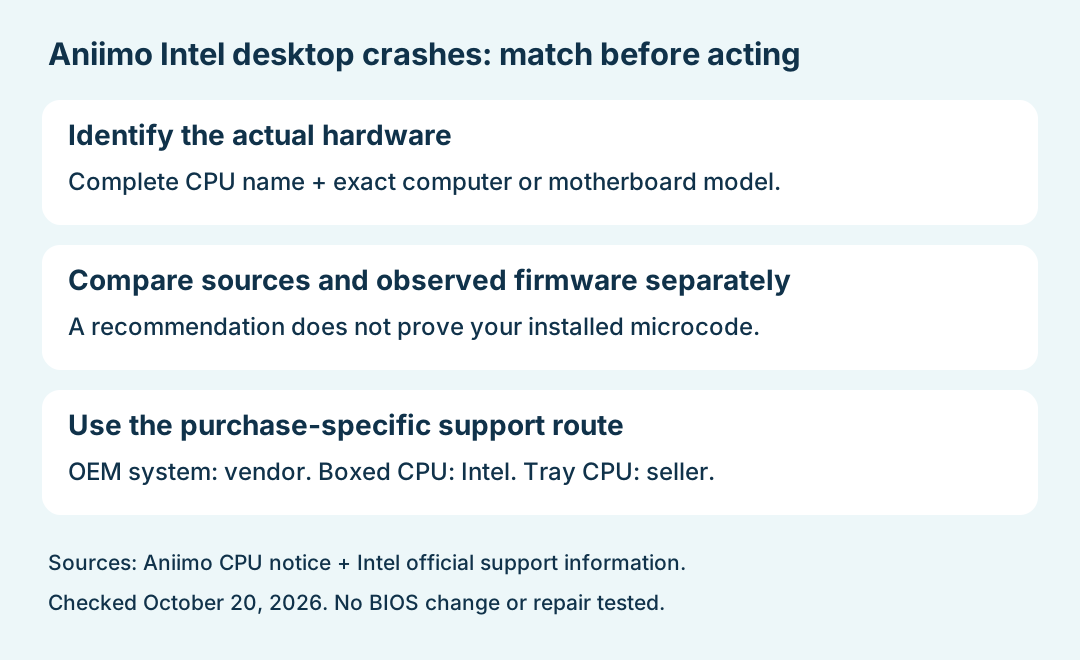
| Hardware identity | Complete CPU name and exact computer or motherboard model | A processor family name is not a model match |
| Firmware | Displayed BIOS version/date and the vendor page you consulted | A BIOS label alone is not proof of its microcode contents |
| Symptom | Exact error, date/time and stage: startup, loading or gameplay | An out-of-VRAM message is not by itself a CPU diagnosis |
| Follow-up | The action actually completed and the next observed result | A restart or opened window is not a verified repair |
If microcode information has not been verified, record it as unknown. Keep source recommendations separate from settings you have actually inspected or changed.
Which support route applies to your purchase?
Intel's linked support statement distinguishes the purchase route:
- An OEM or system-integrator desktop: contact the system vendor.
- A boxed desktop processor bought separately: contact Intel Customer Support.
- A tray desktop processor: contact the place of purchase.
Intel's boxed and tray warranty policy also distinguishes these cases and lists selected desktop models for extended coverage. A listed model is not confirmation that an individual claim has been accepted; eligibility and the actual support outcome remain account- and purchase-specific.
For a game-specific issue that persists, the Aniimo CPU notice points to in-game support. Supply the observed error and hardware details without claiming a cause that has not been established.
Is this the same as every Aniimo black screen?
No. The black-screen-after-update guide addresses the developer's separate old-version update trigger. Choose the page that matches what happened. For platform entry points and requirements, return to Aniimo platforms or the download guide.