Aniimo PC Custom Install Location: Find an Existing Game Folder
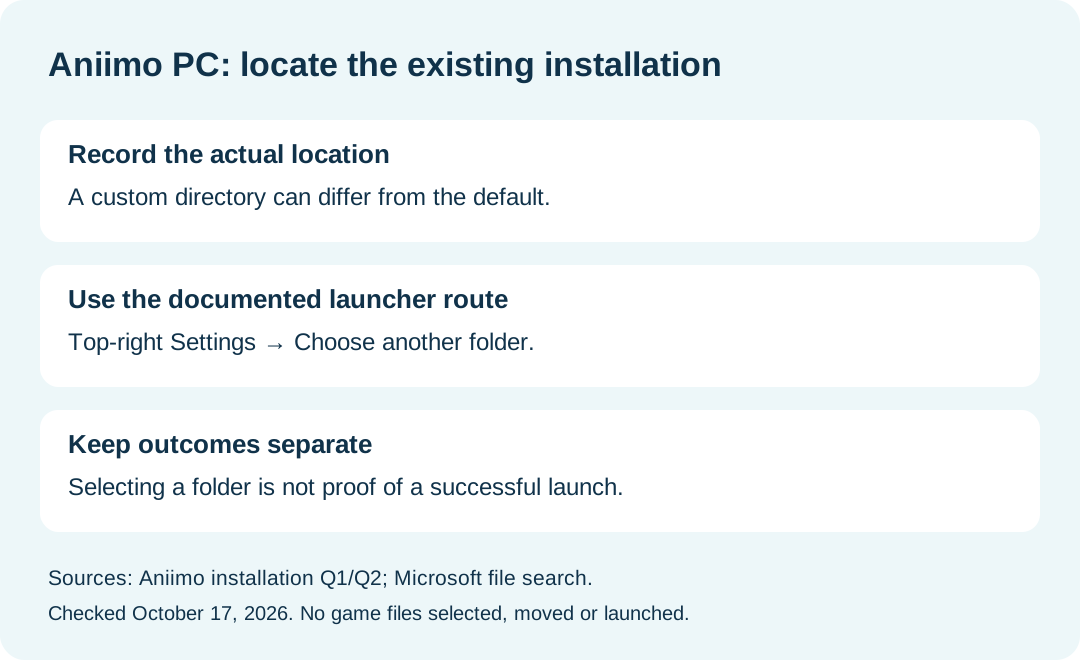
For an Aniimo PC client installed in a custom directory or on an external drive, the official FAQ says to open the launcher's top-right Settings menu and use Choose another folder to locate the game. This is a directory-selection route, not a promise that every folder will be accepted or every installation will launch.
In this guide
Sources checked October 17, 2026: Aniimo FAQ, client installation Questions 1 and 2 and Microsoft's guide to finding files in Windows. We reviewed the instructions; we did not select a real game folder, move files, or test a launch.
Keep the launcher location and game location distinct
The official FAQ describes the launcher's directory as the default client-install location. Its next answer explicitly addresses a custom directory or external drive. Our practical takeaway is to record the location that actually contains your installation, rather than assuming the default still applies.
Swipe or scroll sideways to compare all columns.
| Situation | Documented route or observation | Evidence limit |
|---|---|---|
| The existing client uses the default location | FAQ Question 1 identifies that default | Does not prove where your files are now |
| You installed on another drive or in a custom folder | Settings → Choose another folder | Does not guarantee automatic recognition |
| You cannot find the original folder | Locate files before choosing a target | An empty new folder does not establish an existing installation |
| A PC login error involves path characters | Use the separate login-path guide | That is a different symptom from locating an installation |
This table is an editorial way to separate the questions. It is not a tested file-detection checklist from the developer.
How can I look for the folder in Windows?
Microsoft documents opening File Explorer from the taskbar and searching from a chosen drive or folder. It also describes searching from This PC for a broader, slower search. Search results depend on the location you choose; keep the search scope in your notes.
Our suggested approach is to inspect the drive you remember selecting during installation, then record the candidate folder before pointing the launcher at it. This page does not supply a universal Aniimo folder name, required file list or directory signature because the cited game answer does not publish one.
Do not treat a matching folder name alone as proof that it contains a complete current client. Describe what you actually found and let the launcher's result remain a separate observation.
Does this require deleting or downloading the game again?
The cited custom-directory answer directs you to locate an existing installation; it does not prescribe deletion as part of that step. If the folder is rejected or cannot be found, that remains an unresolved result. We have not verified that pointing at a different folder avoids downloading in every case.
Keep installation-location selection separate from an actual file move. Selecting a directory in the launcher and relocating files are different actions; this guide does not claim to have performed either on a game installation.
What should I record if the launcher still cannot locate it?
Use this editorial comparison note:
Swipe or scroll sideways to compare all columns.
| Field | What to enter |
|---|---|
| Date and platform | Actual check date and Windows version |
| Candidate location | Drive and folder you inspected |
| Launcher directory | Current setting if visible |
| Selection attempted | Exact action completed, or not attempted |
| Result | Accepted, rejected, error text, or another visible outcome |
The official FAQ lists [email protected]. Send actual observations through official support. A successful directory selection should not be reported as a successful game launch unless you also completed that later step.
For downloads and device requirements, return to the Aniimo download guide. For a network error after the launcher opens, use the separate network-check guide.