Aniimo Mobile Network Error: Check the Connection Stage
If Aniimo shows a network error before it connects to the server on a phone, first record the exact screen and whether the error appears during sign-in or connection. Aniimo’s September 22, 2026 mobile FAQ suggests checking VPN or proxy use, iCloud Private Relay on iOS, restarting the phone and router, comparing Wi-Fi with mobile data, and checking router firewall or carrier DNS handling. These are official general suggestions, not a diagnosis or a verified fix for your device.
In this guide
Checked October 30, 2026 against Aniimo’s mobile launch and FAQ notice, Network & Login Question 2. The notice is dated September 22, 2026. We did not sign into Aniimo, change network or privacy settings, inspect a router, or measure a connection.
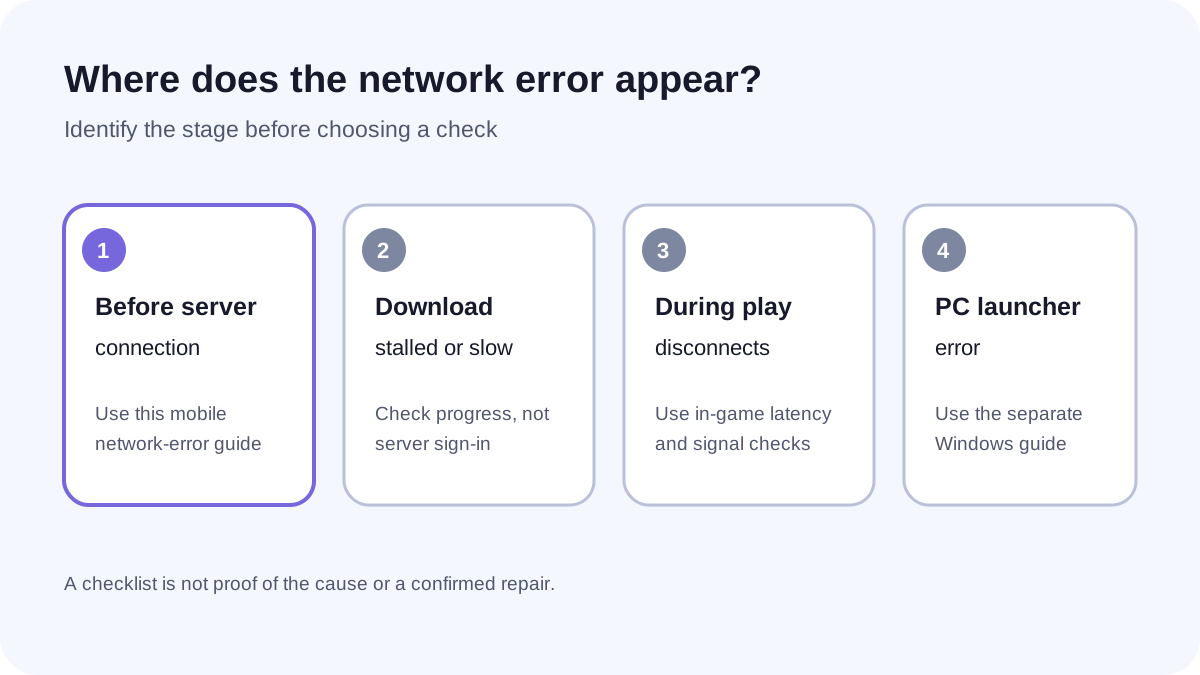
First tell a connection error from a different mobile problem
Swipe or scroll sideways to compare all columns.
| What you see | Read this guide | What it covers |
|---|---|---|
| A network error while connecting to the server, before gameplay | This guide | The dated mobile connection suggestions in Aniimo’s FAQ |
| A download that is at zero or rolls back | Mobile download rollback guide | Download progress, not server sign-in |
| A slow download that is still moving | Slow mobile download guide | Slow progress, not an error during server connection |
| Disconnects, latency spikes or packet loss after play starts | Mobile disconnection guide | In-game symptoms, not initial connection failure |
| A network error in the Windows launcher | PC launcher network-error guide | A separate PC startup stage |
What does Aniimo recommend checking?
The FAQ’s mobile answer lists these checks: whether a VPN or proxy is active; on iOS, whether iCloud Private Relay is on; restarting the phone and router; comparing Wi-Fi and mobile data; and checking the router firewall settings or whether the carrier redirects DNS. It also says servers can be under heavy load during peak download and launch periods.
Treat each item as a question to record, not as proof of cause. We did not test whether a server was busy on October 30, inspect a carrier route, or confirm that changing a setting would help. Do not disable a privacy or security feature solely because it appears in a checklist; consider its implications and follow the device or network provider’s current guidance.
What should you write down before asking for help?
Record the date and timezone, phone model and operating-system version if known, the exact error text, the screen where it appears, and whether you were on Wi-Fi or mobile data. Note only the checks you actually performed and what changed. Do not include passwords, one-time codes, proxy credentials or private network details in a public post.
Aniimo’s notice lists [email protected] for support. This guide does not establish a current outage or a successful repair. It also does not confirm account access, a completed sign-in or an in-game connection.
How is this different from other connection guides?
A phone error before the server connection is different from a download stuck at zero and from a disconnect after gameplay begins. For the latter, see the mobile disconnection guide; for Windows startup, use the PC launcher guide. Return to Aniimo platforms to choose another route.