Aniimo Launcher Does Nothing When Clicked: The Official Permissions Check
If clicking the Aniimo launcher produces no response on Windows, the official FAQ recommends checking that you use an administrator account, then trying the launcher's Run as administrator option. If it still does not respond, contact game support. This is a documented troubleshooting route, not proof that permissions caused your particular failure.
In this guide
Sources checked October 13, 2026: Aniimo's official FAQ, PC launch Question 2 and Microsoft's User Account Control explanation. We reviewed these pages; we did not elevate a launcher or test a repair on a failing installation.
Match the symptom before choosing a route
Swipe or scroll sideways to compare all columns.
| What you observe | Guide to use |
|---|---|
| Clicking the launcher gives no visible response | The permissions check on this page |
| A Windows file-version incompatibility message appears | Windows compatibility |
| The launcher opens but its window is too large | Display scaling |
| Start Game produces a black screen after an old-version update | Startup black screen |
| A white screen appears before the logo | White-screen source check |
This table is our editorial routing aid. It keeps distinct FAQ symptoms separate; it is not a tested diagnostic decision tree.
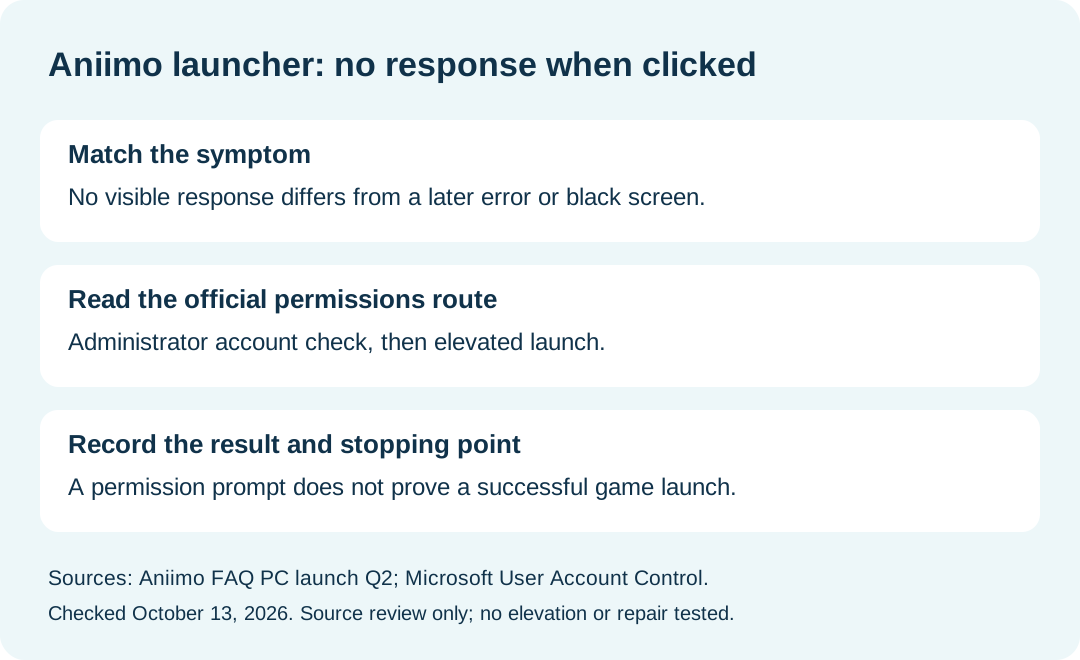
What does the official check involve?
The game FAQ gives an account check, an elevated-launch attempt and a support stopping point. It does not establish a success rate. Treat the result as an observation: did a window appear, did an error replace the silence, or did nothing change?
Is a Windows approval prompt the same as the launcher opening?
No. Microsoft explains that User Account Control asks for approval or denial when an action needs administrator-level permissions. A prompt is a permission decision, not evidence that the game opened successfully. Review the requested application before deciding; record the later launcher result separately.
Microsoft also warns against disabling UAC. This guide does not require a notification-slider change or a permanent change to account privileges.
What should I record before contacting support?
Use a short comparison note like the one below. These are suggested fields, not a mandatory form from Aniimo:
Swipe or scroll sideways to compare all columns.
| Field | Your observation |
|---|---|
| Date and Windows version | Fill with the actual values |
| Launcher file or shortcut used | Record the exact item clicked |
| Ordinary launch result | No window, an error, or another visible result |
| Documented permissions check attempted | Record what you actually did; otherwise write not attempted |
| Approval prompt and later result | Keep these two observations separate |
Do not fill a blank with an assumed repair. A changed symptom is useful to report even when it does not solve the problem.
What if it still does nothing?
Aniimo directs persistent cases to customer support. Its cited page lists [email protected]. Send your actual observations through the official support route; this website does not collect your Windows credentials or offer an account-management service.
For platform download routes and device requirements, return to the Aniimo download guide. For the broader platform overview, see Aniimo platforms.